
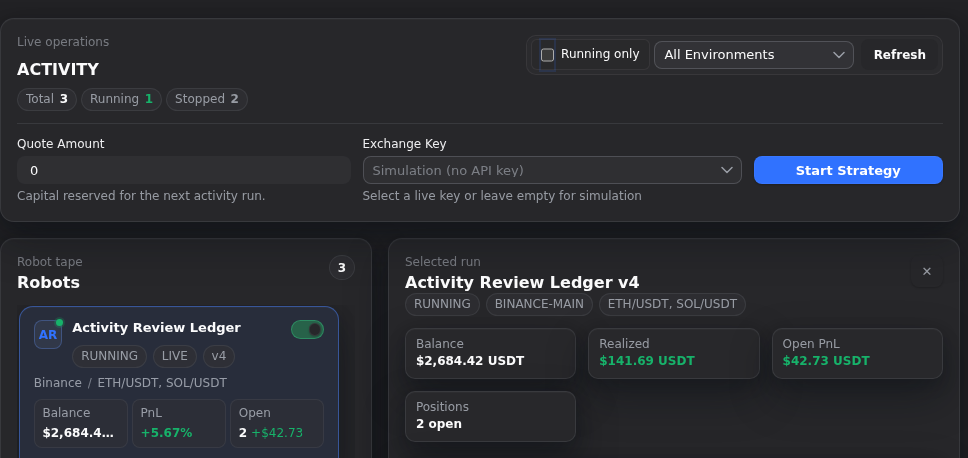
The fastest way to make a strategy mistake is to treat controls like the first thing worth reading. Gimmer’s current Activity tab is more useful than that. It keeps the run list, selected-run summary, positions, and logs in one place so you can inspect what the bot is doing before you decide to start, stop, or reopen another workflow.
This article is about the moment before a control change. It is not a promise that one route answers every strategy question, and it is not a claim that visible activity replaces backtest or config review. It is the smaller habit that keeps the current run visible before you change it.
Open Activity To Read The Run, Not Just To Reach A Button
A lot of unnecessary risk comes from reading too little before acting.
When you open a saved strategy in Gimmer, the builder already keeps Activity beside the other deeper routes. That matters because the same workspace can hold both the next control row and the current run evidence. If you go there only to click Start Strategy or toggle a live run, you miss the route’s most useful job.
The better habit is to treat Activity as a run log first. Read the current state, then decide whether any control change is justified.
Start With The Route Header And Filters
The first clues are small and operational.
The route opens with Live operations and Activity, then shows the visible counts for Total, Running, and Stopped. It also gives you a Running only toggle, an environment filter for All Environments, Simulation, or Live, and a Refresh action.
That is enough to narrow the context before you inspect one run. If the route is crowded, use the filters first so the next decision stays tied to the right bot.
Use The Robot Tape To Pick The Exact Run
After the header, the route becomes specific.
Gimmer labels the run list as Robot tape and Robots. Each card keeps the strategy name, current status, environment, version, exchange label, active pairs, and visible metrics in one compact row. That is the point where you confirm you are reading the right run before you change anything else.
If you skip this step, it becomes too easy to stop one bot while thinking about another, or to read a simulation run as if it were live context. The tape is there to prevent that kind of confusion.
Read The Selected Run Summary Before You Touch Controls
Once one robot is selected, the route shifts from list view to run view.
The selected-run panel keeps the basic state visible with summary tiles for Balance, Realized, Open PnL, and Positions. Those values are not a prediction, and they are not a strategy verdict. They are the current evidence you should read before you start or stop anything.
This matters because control changes make more sense when the current run is already in front of you. If open positions are still active, if realized results already tell you something about the session, or if the route shows a state you were not expecting, that should shape the next step.
Use Run Evidence To Keep The Context Honest
The route goes deeper without leaving the same screen.
The Run evidence card shows the kind of details that keep a control change grounded: Initial, Free, Realized, Open PnL, Open, Closed, Win rate, Wins / losses, Started, Ended, Fees, and Quote.
That does not mean one card proves the strategy is healthy or ready. It means the route already gives you the current run context that should come before another click. If the evidence looks incomplete, contradictory, or just different from what you expected, that is a reason to pause before changing the live state.
Check Positions And Logs Before You Change Direction
The route is strongest when you finish the reading order.
Below the summary, Gimmer keeps Positions split into Open and Closed views, and it keeps Strategy Logs visible in the same route. That is the moment to ask a narrower question: what is this run carrying now, what has it already closed, and what runtime messages are already on record?
You do not need to turn that into a full incident story. You only need enough context to know whether the next move belongs in live controls, a backtest pass, or a configuration review.
What The Activity Tab Can Tell You Right Now
The current route is useful because it can answer the first run-review questions directly:
- Am I looking at the right robot, environment, and version?
- Is this run currently active or stopped?
- What balance, realized result, open PnL, and open-position count are visible now?
- What does the run-evidence block say about free balance, closed positions, win rate, timing, fees, and quote context?
- What do the open or closed positions and the current logs show before I change anything?
If the route answers those questions clearly, the next action becomes much calmer.
What The Activity Tab Does Not Prove
This is where the article needs restraint.
- The route does not prove a strategy is safe to run.
- Visible realized or open PnL is not a promise about future results.
- The route is not a complete historical audit trail across every strategy event.
- The selected run is not a substitute for a controlled backtest when deeper validation is needed.
- Logs and positions do not automatically explain the full cause of every runtime problem.
- The presence of controls on the page does not mean they should be used before the route is read.
Those limits are useful because they keep the route trustworthy. The tab helps you read the current run honestly before you change it. That is enough.
A Practical Reading Order
If you want a repeatable pre-control routine, keep it small:
- Open the saved strategy and switch to
Activity. - Use
Running onlyor the environment selector if the run list needs to shrink. - Select the exact robot you mean to review.
- Read the selected-run summary before touching controls.
- Check
Run evidence, positions, and logs for the current context. - Only then decide whether the next step is start, stop, backtest, or config review.
This routine is intentionally modest. It does not ask the route to do every job. It only asks you to read the current run before you change it.
Final Thoughts
Good control discipline usually starts with a smaller pause than people expect.
Gimmer’s Activity tab already keeps the current run, positions, and logs visible beside the next control row. That makes it a better first stop than a blind toggle or a rushed trip back into configuration. Read the run first, then decide what the next action deserves.
Open the saved strategy, switch to Activity, read the selected run and logs first, and only then decide whether the next step is start, stop, backtest, or config review.
– The Gimmer Team