
Before you open your first strategy path in Gimmer, use the onboarding wizard as a literal first-run checklist: fund the wallet with enough ETH to unlock step 2, review the GMR package and checkout surfaces, and treat the final handoff as a routing step rather than as proof that live trading is already ready.
Why The Wizard Matters Before Any Strategy Opens
The first strategy mistake often happens before a strategy page is even on screen. A signed-in operator can see a wallet address, a deposit requirement, package cards, a checkout panel, and a visible launch step all at once, then assume those surfaces mean the account is already ready for every later action.
Gimmer’s onboarding wizard is useful because it slows that assumption down. It gives the reader a current order of operations: fund the wallet first, review the GMR purchase path second, and only then move into later product surfaces. The value here is not hype. The value is a calmer reading order.
Keep The Scope On The Signed-In Overview Flow
This article is about the signed-in onboarding wizard that appears from Overview when that account still has the wizard visible. It is not a generic public tour of the whole product, and it is not a substitute for later exchange, wallet, or strategy setup guides.
That boundary matters because the wizard is a first-run surface. It helps a signed-in operator interpret what Gimmer expects next, whether this is the first visit for that account or a later return before the wizard has been dismissed. It does not replace the later work of choosing a strategy, connecting the right exchange credentials, or reviewing live-state behavior in deeper routes.
Step 1 Is A Real Funding Gate
The strongest part of the wizard is not the launch language. It is the first gate.
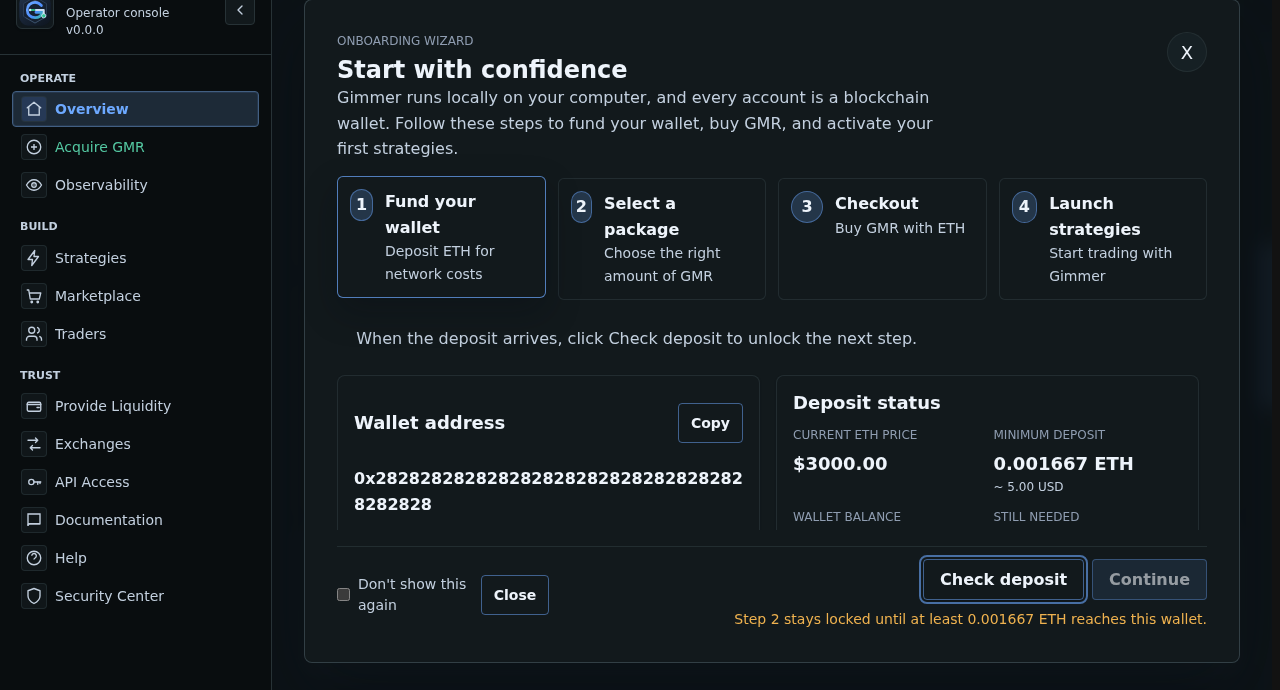
Step 1 is Fund your wallet. The current flow shows a wallet address, a live ETH price check, a minimum deposit target, current wallet balance, and a Still needed field. It also keeps a visible Check deposit action beside a disabled Continue button until the wallet check confirms enough ETH is available to unlock step 2.
That is the part of the wizard worth taking literally. It is not vague motivation copy. It is a visible boundary. When the wallet is still short, the wizard can say that step 2 stays locked until the missing ETH reaches the wallet. When the balance clears the threshold, the wizard can say Deposit detected. Step 2 is unlocked.
That makes step 1 the right place to pause. Before you think about package size or strategy access, read the deposit gate first.
If the wallet already holds enough ETH, the opening check can move the wizard straight into step 2. Read that jump as proof that the funding gate already passed, not as proof that the rest of the onboarding work is already complete.
Keep that claim boundary narrow. The step-1 threshold is a current unlock check for this wizard, not a guarantee that the same ETH amount will cover every later on-chain action or make the account fully ready.
Step 2 Narrows The GMR Decision Before Checkout
Once the deposit gate clears, step 2 moves the user into Select a package. The point here is not to make a broad promise about operating capacity. The point is to keep the GMR decision explicit before checkout starts.
The current wizard shows preset package cards and a Custom amount path that can request a live quote. That is useful because it separates the amount decision from the transaction step. A signed-in operator reading the wizard does not need to guess what comes next. The wizard makes the next decision visible before checkout asks for the local wallet password or a swap submission.
Step 3 Turns The Plan Into A Visible Checkout Review
Step 3 is Checkout, and it is more than a single button. The current summary shows GMR amount, Estimated ETH, Max ETH (1.00% slippage), Provider, the Funding wallet, a local Wallet password input, and the Buy with ETH action.
That matters because the product is still asking the reader to review what is about to happen. The surface can also return visible transaction feedback such as Swap submitted., Awaiting confirmation (0/1)…, and Swap confirmed on-chain. In other words, the wizard does not skip over transaction state. It keeps the state visible during checkout.
Treat that wallet password field as a local confirmation step inside your signed-in checkout flow, not as something to share in support messages, screenshots, or exported notes.
That visibility is useful, but it still should be read precisely. A visible quote is not a promise that nothing can change later. A visible provider label is not a guarantee that every later step is already complete. The checkout surface helps the reader inspect the current transaction path before continuing.
Step 4 Is A Handoff, Not A Readiness Certificate
After the purchase step, the wizard moves into Launch strategies. This is where the public claim boundary matters most.
Even if the in-product step uses more confident language, the public reading should stay narrower: this is a handoff into later setup surfaces, not a security certificate for the whole account.
The current step-4 surface points the reader toward next actions such as creating a strategy, connecting exchange API keys, and monitoring performance. That makes it a useful handoff. It tells the user where the product expects them to go next.
What it does not do is prove that every later prerequisite is already complete. It does not prove that the right exchange key exists. It does not prove that a strategy is fully configured. It does not prove that a live start will succeed. Read step 4 as a routing step, not as a certificate.
What The Wizard Does Not Prove
This article should stay narrow about what the onboarding wizard can and cannot claim.
- It does not prove live-trading readiness.
- It does not prove that exchange API keys are already connected.
- It does not prove that a strategy can start immediately after a purchase completes.
- It does not guarantee a swap outcome simply because the checkout summary is visible.
- It does not replace later strategy, exchange, wallet, or monitoring review.
That narrower framing is exactly why the wizard is publishable at all. The article is useful when it teaches readers how to read the current flow, not when it inflates the flow into a promise surface.
A Calm First-Run Routine
A practical first-run routine can stay simple:
- Open Overview and let the onboarding wizard set the reading order.
- Use the opening wallet check to confirm the funding gate, even if the wizard advances into step 2 automatically.
- Review the GMR amount choice before moving into checkout.
- Read the checkout summary, local wallet password prompt, and confirmation messages literally.
- Use step 4 as the bridge into later product routes, not as the end of the verification work.
Final Thoughts
Good first-run guidance is usually quieter than launch copy. It shows the user what the product expects next and where a real boundary still exists.
That is the most useful way to read Gimmer’s onboarding wizard today. The ETH funding gate is the first real unlock. Package selection and checkout make the purchase path visible. The final step points to the next routes without pretending those routes are already complete for the reader.
Open Gimmer, stay on Overview, let the opening wallet check confirm the funding gate, verify the package and checkout details, and only then choose the next strategy path from the visible handoff.
— The Gimmer Team