
After a Gimmer-started on-chain action, the calm next step is to read the current Wallet activity row before you assume anything finished. Open Security Center, scroll to Wallet activity, and use the visible description, date, status, and hash link as your first proof surface.
Why This Section Matters After An Action Starts
Once Gimmer starts an on-chain workflow, the most useful first question is not Did everything finish already? It is What is the app showing me right now about the action it is tracking?
That is where the current Wallet activity section becomes useful. It gives signed-in operators one route-literal place to read the latest Gimmer-tracked action, when it was recorded, what status the app is currently showing, and whether a transaction hash link is available for deeper inspection.
Wallet activity is the current route-level record for Gimmer-initiated on-chain workflows that the app is tracking here. It is not a blanket promise that every wallet transaction, every external action, or every settlement outcome is already final when you open the page.
Start With The Reading Order The Route Already Gives You
The section is easiest to use when you read it in the same order the row is presented.
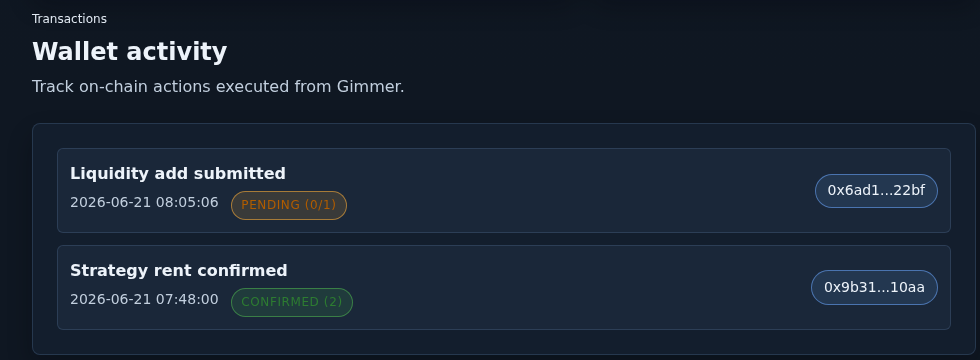
Start with the description. That tells you which Gimmer-tracked action the row is about. In the current proof, the top row shows Liquidity add submitted and the next row shows Strategy rent confirmed. That distinction matters because the section is more useful as a workflow check than as a generic wallet log.
Then read the date. The timestamp helps you confirm whether you are looking at the action you just triggered or an earlier one. After that, read the visible status chip, because that is the part most likely to shape your next move.
Only after those three fields should you move to the short hash. If it is rendered as a link, use it as a way to inspect the matching transaction on the linked explorer. If it is shown as plain text instead, treat it as an identifier only.
How To Read Pending Without Overreading It
A pending state is useful because it tells you the app has not yet moved that row into a confirmed state.
In the current proof, the newest visible row reads Pending (0/1). That is enough to say the app still shows the action as pending. It is not enough to claim a universal settlement rule, a guaranteed completion time, or a chain-wide meaning behind that count.
The practical habit is simple: if the latest row is still pending, stop there first. Read the visible state honestly, use the linked hash when it is available, and give the workflow time to move before you describe the action as finished.
How To Read Confirmed Without Turning It Into A Guarantee
A confirmed row is stronger than a pending row, but it still needs conservative language.
In the current proof, the second visible row reads Confirmed (2). That supports a narrow statement: Gimmer currently marks that tracked action as confirmed and shows a visible confirmation count.
What it does not support is broader language about universal finality, irreversibility, or identical settlement behavior across every chain and action type. The better reading is narrower and more useful: the app has moved this tracked row into a confirmed state, and the linked hash is there if you want to inspect the matching transaction more deeply.
What To Do With Failed, Empty, Or Fallback States
The section is still useful when the answer is incomplete or uncomfortable.
If a row is marked Failed, the app is telling you that the tracked action currently failed. That does not prove every external side effect was rolled back, and it does not remove the need for deeper inspection when the workflow matters.
If the section shows No transactions yet., read that literally: the section has no Gimmer-tracked rows to show right now. That is not the same as saying the wallet has no broader on-chain history.
If the route surfaces a stream error such as stream unavailable, stop at that visible state instead of inventing certainty. Re-check the affected workflow and use any visible transaction identifier before you describe the action as complete.
Keep This Separate From Wallet Backup And Profile Maintenance
This article is intentionally narrower than the full Security Center route.
It is not a guide to Wallet access & backups. It is not about private-key export, keystore export, account recovery, or general profile maintenance. It is about one post-action habit: read the visible Wallet activity row before you assume the workflow is done.
That separation matters because the route contains more than one trust boundary. The transaction-reading path should stay distinct from secret-handling or recovery decisions.
A Practical Post-Action Routine
A short routine keeps this section useful:
- Open Security Center and scroll to Wallet activity.
- Read the newest row in order: description, date, status, then hash.
- If the short hash is a link, use it to inspect the matching transaction on the linked explorer.
- If the row is still Pending (…), or if the section shows Failed, stream unavailable, or No transactions yet., stop at that visible state before you describe the workflow as complete.
- Treat the section as a Gimmer-tracked activity view, not as a complete wallet-history view.
That routine is calmer than guessing from memory or reading too much into a single status chip. It keeps the next step anchored to what the route is actually proving.
Final Thoughts
The value of Wallet activity is not that it removes uncertainty from every on-chain workflow. The value is that it gives operators a literal, visible place to read what Gimmer is currently tracking before they decide whether to wait, verify deeper, or investigate further.
That is enough to improve the first decision after an action starts. Read the newest row honestly. Use the hash link when it is there. Keep the claim boundary narrow.
Open Gimmer, sign in, go to Security Center, scroll to Wallet activity, read the latest row, and verify the visible status plus transaction hash before you assume the action is complete.
— The Gimmer Team