
If you’re already signed in to Gimmer and need to confirm which account you’re using, update the name shown in the app, or change your password, the current Security Center already gives you that path. The useful habit is to stay inside Identity & access and the Security card, not drift into separate wallet backup and recovery tasks on the same page.
Why This Route Needs A Narrow Read
Gimmer’s current profile route brings more than one trust boundary into the same place. It shows routine account-maintenance panels, but it also leads into wallet backup and recovery surfaces lower on the page.
That is why this article stays narrow. It is only about signed-in identity and password maintenance inside Security Center. It is not a tour of every control on the route, and it is not a guide to account recovery or secret handling.
This article covers routine identity and password maintenance only. Private-key export, keystore backup, and recovery actions remain separate wallet-protection tasks and should not be treated as part of normal account upkeep.
Start With Identity & Access
Open Gimmer, sign in, and go to Security Center. The section that matters for this workflow is Identity & access.
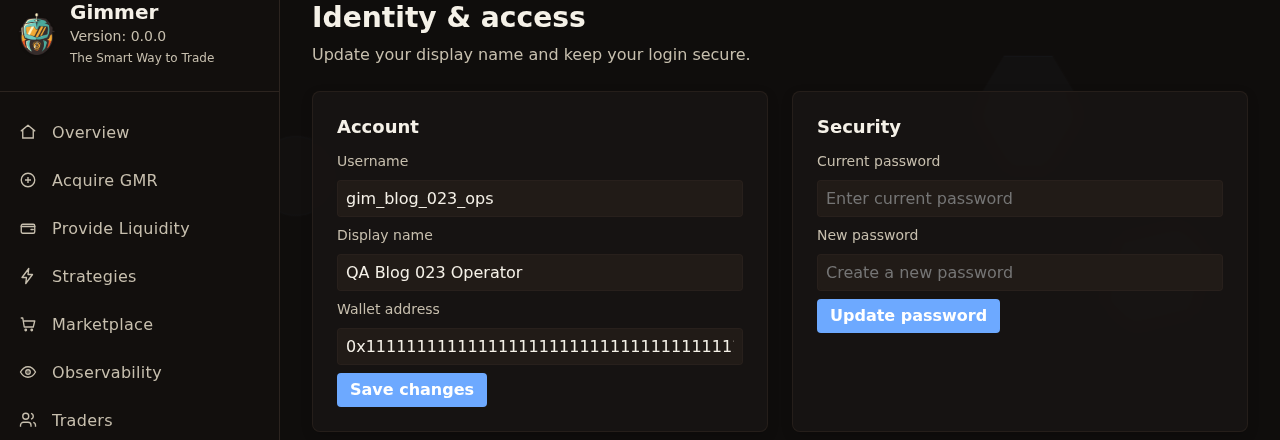
That section keeps the visible account-maintenance work in one place. The Account card shows the context around the signed-in account, and the Security card handles the current password-update flow.
If your goal is routine account upkeep, that is the right stopping point. You do not need to keep scrolling into backup or recovery surfaces to complete this workflow.
Review Username Context And Update Display Name
The first useful distinction on this route is simple: some fields are there to confirm context, and one field is there to change.
Username is visible context, not an editable control. The current route lets you review it so you can confirm you are working in the expected account, but it does not present it as something to change.
Display name is the field you can edit. If the name shown in the app needs to be updated, change it there and use Save changes.
The same card also shows Wallet address as visible account context. That does not turn this workflow into a wallet-secret task. It is simply part of the account card the route currently displays.
When the update succeeds, the current route confirms it with Profile updated. If you clear the display name and try to continue, the route responds literally with Display name is required.
Use The Security Card For In-Session Password Maintenance
The adjacent Security card is the current signed-in path for changing a password.
It asks for Current password and New password, then completes the change through Update password. That is a routine maintenance path for someone who is already inside the product, not a recovery flow for someone who is locked out.
If either field is missing, the route says Current and new password are required. If the new password is too short, it says New password must be at least 6 characters. When the change completes, it confirms the result with Password updated.
Security Center shows the signed-in password update form; it is not proof of a lockout-recovery or password-reset workflow.
What This Workflow Does Not Cover
A narrow workflow is useful because it reduces the chance of inventing a capability the current product is not showing.
This article is not about changing a username. It is not about resetting access by email. It is not about recovering a locked account from the sign-in screen. And it is not about exporting a private key, downloading a keystore, or treating backup tasks as part of normal account upkeep.
Those boundaries matter because the route name can sound broader than the specific workflow you are doing. The better reading is practical: use the visible identity and password controls for identity upkeep, and treat wallet protection and recovery as separate decisions.
A Practical Routine Before You Move On
A short routine keeps the route useful:
- Open Security Center and stop at Identity & access.
- Confirm the visible Username matches the signed-in account you expect.
- Update Display name only if needed, then use Save changes.
- Use Current password and New password only when you intend to change the current sign-in password.
- Leave wallet export, backup, and recovery tasks for a separate, deliberate workflow.
That routine is calmer than treating the whole page as one generic security checklist. It keeps routine account maintenance literal to the controls the product is currently showing.
Final Thoughts
Good account maintenance is usually straightforward when the route is read honestly. Confirm the account context. Update the visible display name if it needs to change. Change the password while you are signed in. Stop there unless you intentionally need a separate wallet-protection task.
Open Gimmer, sign in, go to Security Center, review Identity & access, confirm the visible Username, update Display name if needed, and use Current password plus New password to update your password.
— The Gimmer Team