
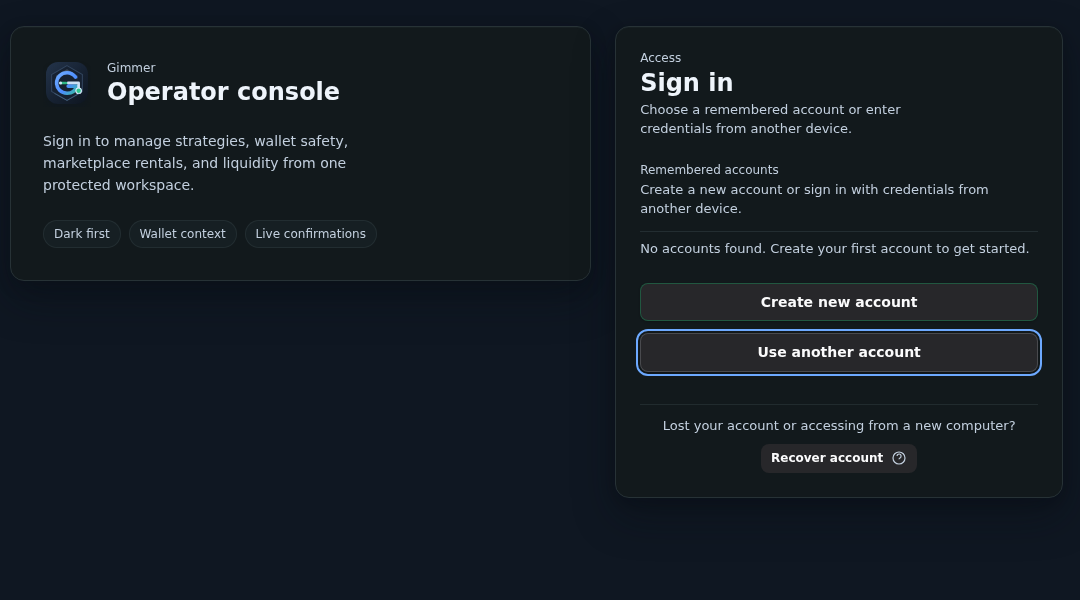
Access problems get harder when everything is treated like the same problem too early. Gimmer’s current auth entry surfaces already separate several different situations: a device with remembered accounts, a device without them, a manual sign-in path, a recovery lane, and a staged account-creation flow. Read that state first and the next question usually becomes much smaller.
This article is about the moment before a broad diagnosis begins. It is not a security guarantee, and it is not a claim that the login or create-account screens explain every backend or permission problem. It is the smaller habit that keeps the visible access state honest before you escalate.
Start With What The Sign-In Screen Is Already Telling You
The current login route is more specific than a generic “access problem” label.
Gimmer opens the page with Sign in and tells you to Choose a remembered account or enter credentials from another device. That matters because the screen is already separating local remembered-account context from manual account entry. If you skip that distinction, you can start diagnosing the wrong problem immediately.
The route is useful because it keeps the entry paths side by side: remembered accounts when the device already has them, Use another account for an account the device does not already remember, Create new account when you need a new identity, and Recover account when the job is recovery rather than ordinary sign-in.
An Empty Remembered-Accounts State Answers A Narrower Question
Sometimes the most useful access clue is the smallest one on the page.
If the remembered-account panel says No accounts found. Create your first account to get started., the route is telling you something concrete: this device does not currently have a remembered account entry to choose from. That is not the same thing as a full account failure, and it is not proof that the backend has never seen the account.
In that state, the safe next question becomes smaller. Do you need to sign in with credentials from another device, or are you actually creating a new account? The route already gives those two lanes without asking you to guess.
Use Another Account Is The Manual Entry Lane
Not every access problem is a recovery problem.
When you choose Use another account, Gimmer keeps the same sign-in shell but switches the task to direct Account name and Password entry. That tells the reader to stop looking for a remembered account on the device and start answering a different question: do I have the right credentials for the account I mean to open?
That lane is especially useful on a new computer or a clean browser profile. It gives you a narrower access test without pretending that the device should already remember anything locally.
Recovery Should Stay Separate From Normal Sign-In
Gimmer presents recovery as its own separate step inside the sign-in shell.
The login route includes a Recover account control and a dedicated recovery panel. That separation matters because recovery is not the same task as ordinary remembered-account entry or manual sign-in. If the route is offering recovery methods, it is already telling you that you have moved into a more sensitive access lane.
The trust-safe reading is simple: do not jump into recovery just because the first sign-in attempt feels inconvenient. Use the normal sign-in paths first when they still fit the visible state. Recovery is the route for account restoration, not the default answer to every access interruption.
Create Account Is A Setup Flow, Not A Generic Access Retry
The create-account route answers a different question from the login route.
When you open Create account, Gimmer does not treat it like a fast bypass around sign-in. The route begins with Account name and Password, surfaces password-strength feedback, and stops weak or incomplete first-step input before it moves forward. That is already useful because it tells you whether you are still solving basic account setup rather than diagnosing an existing account problem.
After that, the flow turns into mnemonic-phrase handling. The route moves into phrase generation, handling, and confirmation before account creation can finish. That means the screen is still in setup mode, not in general troubleshooting mode. Treating it that way keeps the next step honest.
What These Entry States Can Clarify Right Now
The current auth surfaces can answer the first access questions directly:
- Does this device already remember an account I can choose?
- If not, am I supposed to use manual credentials from another device instead?
- Is the correct lane ordinary sign-in, recovery, or new-account setup?
- Is the create-account flow still blocked on basic field checks, phrase handling, or phrase confirmation?
- Am I looking at a local device-context problem or at least a narrower auth-entry task before any broader diagnosis begins?
If the route answers those questions clearly, the next action becomes much calmer.
What These Screens Do Not Prove
This is where the article needs restraint.
- A blank remembered-account list does not prove the account does not exist elsewhere.
- The sign-in screen does not prove backend health or backend failure by itself.
- Manual account entry does not prove the credentials are correct until the sign-in succeeds.
- The presence of recovery options does not mean recovery is the right first move.
- Create-account completion does not prove wallet funding, exchange access, or trading readiness.
- These entry screens do not replace deeper support or technical review when the visible state still leaves the access question unresolved.
Those limits matter because they keep the routes trustworthy. The auth entry surfaces do not solve everything. They help you avoid solving the wrong thing first.
A Practical Reading Order Before You Escalate
If you want a repeatable access-first routine, keep it small:
- Open
#/loginor#/create-accountand read the visible route state first. - If remembered accounts are visible, decide whether one local account is the account you actually need.
- If no remembered account is available, choose between
Use another accountandCreate new accountinstead of treating both as the same task. - Use
Recover accountonly when the problem is account restoration rather than normal sign-in. - If you are in
Create account, finish the current setup step before treating the flow like a general access diagnosis. - Only then escalate the specific access question the current route still leaves unresolved.
This routine is intentionally modest. It does not ask the auth entry surfaces to explain every access failure. It only asks you to read the current state before you assume a bigger one.
Final Thoughts
Trust usually improves when the first diagnosis becomes smaller, not bigger.
Gimmer’s current sign-in and create-account routes already separate local remembered-account context, manual credentials, recovery, and new-account setup. That is enough to keep many access questions from turning vague too early. Read the route you are actually on, choose the lane it is already showing you, and escalate only what still remains unclear.
Read the visible sign-in or create-account state first, then escalate only the specific access question the screen still leaves unresolved.
– The Gimmer Team