
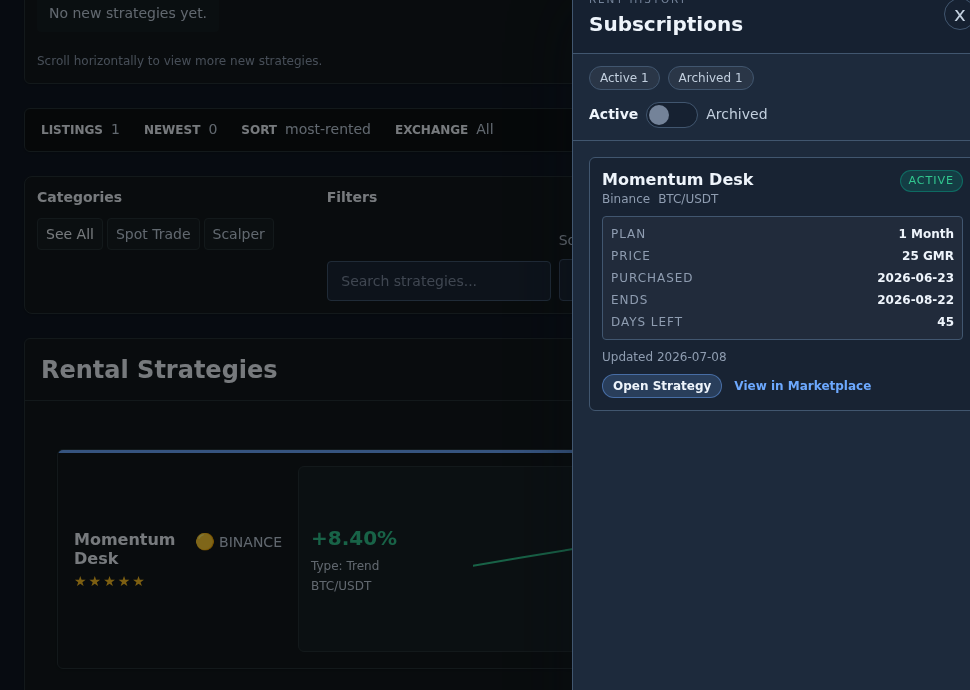
The moment after a marketplace rental can feel less clear than the rent itself. The confirmation step may be over, but the next practical question is still open: where should you go to check the record, see whether the rental is still active, and find the strategy that came from it? In Gimmer’s current product, the safest answer is not to guess. Start with the Marketplace Rent History drawer, read the subscription record it already exposes, and let the visible action buttons tell you whether the next truthful step is to generate the strategy, open the strategy, or return to the original listing.
Start With Rent History, Not With Memory
After a rental, it is easy to rely on memory instead of the product. That usually makes the next step worse.
The current Marketplace route already gives you a better starting point. It keeps a visible Rent History button in the main panel and repeats the same action in the lower callout with Open rent history. That matters because the product is already telling you where the current rental record belongs in the workflow: back in Marketplace, not hidden behind guesswork.
If you want to know whether the subscription is still active, how long it runs, or whether the strategy already exists as a linked record in the builder, the drawer is the first surface that earns attention.
Read The Subscription Record Before You Chase The Strategy
When the drawer opens, the heading is direct: Rent History and Subscriptions.
That detail is useful because it frames the surface correctly. This is not a leaderboard, not a discovery page, and not a generic strategy list. It is the record view for a rental that already happened.
The current drawer can separate records into Active and Archived. It also makes empty or loading states explicit with messages such as Loading subscriptions…, No active subscriptions yet., and No archived subscriptions yet. That is a trust-positive detail because the product does not pretend a missing row is the same thing as a clean record.
Once a subscription is visible, the drawer gives you a practical reading order: confirm the exchange and pair, then read Plan, Price, Purchased, Ends, Days left, and Updated. Those fields tell you what record you are looking at right now. That is a better habit than jumping straight to a button just because one is available.
Use Active And Archived As State, Not As Storytelling
The active versus archived split is useful because it reduces ambiguity. A current rental and an older one should not feel interchangeable.
What the split does not do is explain everything by itself. An Active label does not guarantee that every downstream artifact already exists in the exact form you expect. An Archived label does not prove that every historical detail has been fully expanded into a standalone history page. Those labels are state markers. They help you place the subscription in time. They are not a substitute for reading the rest of the row.
That same discipline applies to Days left and Updated. They are useful because they help you understand current timing. They should not be turned into marketing language about urgency or completeness.
When You See Generate Strategy, Treat It As A Handoff
One of the most important post-rental questions is whether the rented record already exists as a strategy record in the builder.
The current drawer answers that question through the action it exposes. If the row shows Generate Strategy, the current UI is telling you that the strategy handoff still needs to be created from that subscription. That label matters because it is concrete. The product is not asking you to guess which surface comes next. It is telling you which action creates the linked strategy record from the subscription.
In the current implementation, that generate flow refreshes subscriptions and then sends you into the strategy builder details tab for the resulting strategy. That makes the button a handoff, not a promise. It helps you move from rental record to a strategy record in the builder without pretending those are automatically the same thing at every moment.
When You See Open Strategy, Use It To Confirm The Generated Record
If the row shows Open Strategy, the drawer changes the question again.
Instead of asking you to generate the record, it offers Open Strategy. The strategy name itself can also open the activity tab. That matters because it keeps the handoff honest. The record is no longer only a marketplace subscription. It now has a visible strategy handoff inside the builder flow.
The right next step is not to treat that handoff as proof that the strategy is ready for runtime decisions. The right next step is to use the builder details view to confirm that you reached the intended strategy record. In other words, the drawer helps you locate the strategy. It does not replace the need to read the strategy once you get there.
Use View In Marketplace When You Need Listing Context Again
Sometimes the missing context is not inside the strategy builder. Sometimes you need the original listing again.
That is why the drawer can also expose View in Marketplace. The useful part of that action is not complexity. It is orientation. If you need to reconnect the rental record with the listing that produced it, the current product gives you a direct way back to that listing context instead of forcing you to search manually.
This is another reason the drawer works as a post-rental control point. It does not trap you in one interpretation. It lets the current record decide whether the next truthful move is back to listing context or forward into strategy details.
Be Precise About The Standalone Rent History Route
There is also a dedicated Rent History route in the product. That is worth mentioning carefully, because the current surface is still a lightweight shell with a placeholder card compared with the drawer people may expect.
Today, the standalone route shows the page title, a subtitle about rental operations, and a placeholder card. It does not yet expose the same practical subscription rows and action buttons that the Marketplace drawer already provides. That means the safer public wording is simple: the actionable record view today is the drawer.
This is not a weakness to hide with vague language. It is a boundary to describe clearly. Trust improves when the article points readers to the surface that actually helps right now.
A Practical Post-Rental Routine
A conservative routine after a marketplace rental looks like this:
- Open Marketplace and use Rent History or Open rent history first.
- Choose Active or Archived based on the subscription you expect to find.
- Read the current record fields in order: exchange, pair, Plan, Price, Purchased, Ends, Days left, and Updated.
- If the row offers Generate Strategy, use it as the handoff that creates the linked strategy record and routes into the builder details view.
- If the row offers Open Strategy, use it to confirm the linked strategy record in the builder details view.
- If you need the original listing context again, use View in Marketplace instead of searching manually.
- Treat the standalone Rent History route as a lightweight shell with a placeholder card until the product exposes the same practical record detail there.
Final Thoughts
The safest post-rental workflow is usually the least dramatic one. Do not guess where the record went. Do not assume the generated strategy is already where you expect it. Let the product’s current record view tell you what exists now and which handoff is actually available.
In Gimmer today, that means the Marketplace rent-history drawer is the operational center of gravity after a rental. Read the subscription first, then follow the action that matches the state in front of you.
Open Marketplace, use Rent History to review the subscription record, read whether the subscription is still active or archived, and follow the visible next action: Generate Strategy, Open Strategy, or View in Marketplace.
— The Gimmer Team