
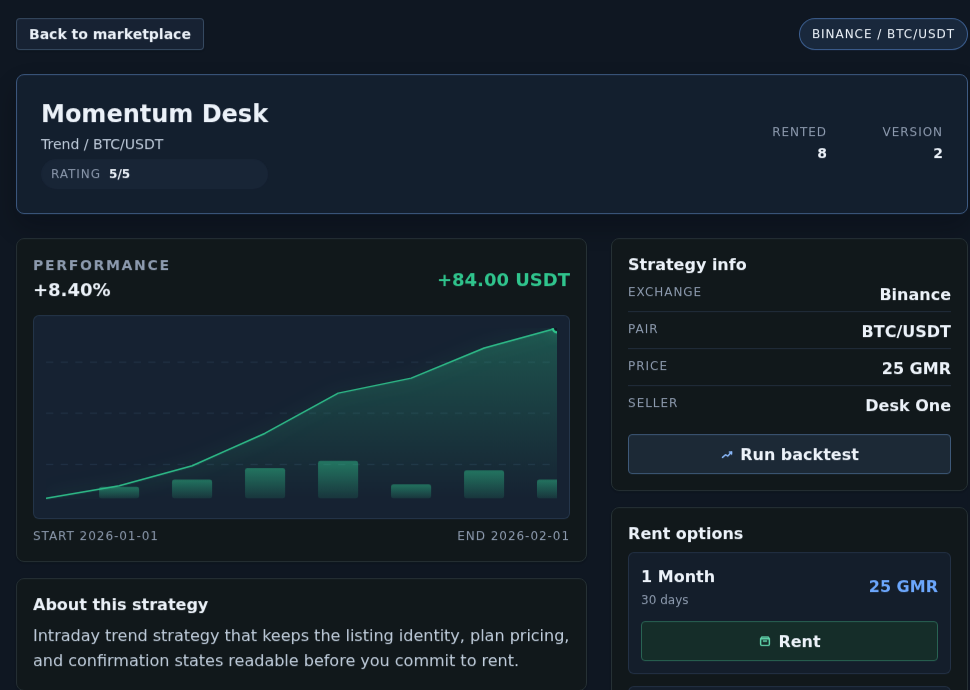
A marketplace listing can feel more decisive than it really is. A page may already show a performance curve, a rent count, and a button labeled Rent, but those signals are only useful if you read them in the order the product already provides. Gimmer’s current marketplace detail route is strongest when you treat it as an inspection surface first: identify the listing, check whether it is actually rentable, read the current context, and only then decide whether the next step should be a backtest, a pause, or a rent.
Start With Identity And Availability, Not With The Rent Button
The first useful question is not whether you can click Rent. It is whether the listing in front of you is clearly the one you mean to inspect.
The current route gives that context immediately. It keeps a Back to marketplace action in view, shows the exchange and pair together, and can surface chips such as Pending approval or Inactive. Those states matter because they change what the page is telling you before performance or price enters the conversation.
If a listing is waiting for approval or marked inactive, that is already a meaningful answer. The route is telling you this is not a normal rent-ready path yet. That is not a minor badge to skim past. It is an availability boundary.
Even when the listing is available, the hero area still works best as orientation rather than persuasion. The page keeps Rented and Version visible so you know what record you are looking at, not so you assume demand or a version number proves quality on its own.
Read The Performance Card As Context, Not As A Promise
The Performance card is one of the easiest places to overread the page.
The current route can show a percentage, a value change, and a chart range with start and end dates. That is useful context because it helps you understand what kind of historical surface the listing is presenting. It is not the same thing as a recommendation, a ranking, or a guarantee about what happens next.
The safer reading habit is simple: use the chart to understand what this listing is showing, not to skip the rest of the page. If the route gives you a start date, an end date, and a visible performance line, that should slow you down enough to ask what this detail page still has to confirm before a rent deserves consideration.
This is also why the detail route keeps the chart beside the rest of the listing information instead of replacing it. Performance context is part of the inspection flow, not the whole flow.
Use The Description And Strategy Info To Confirm What You Are Actually Renting
After the performance panel, the next useful surfaces are About this strategy and Strategy info.
The description gives the listing its own plain-language framing. The info card keeps the current Exchange, Pair, Price, and Seller visible in one place. That matters because rent decisions get weaker when the listing identity is only half-remembered.
If the exchange, pair, or seller context is not the one you expected, the right next step may be to stop right there. A clean rent flow does not help if you are inspecting the wrong listing.
This is where the page becomes more practical than a marketplace grid. The detail route is no longer just asking whether something looks interesting. It is asking whether the exact listing details still make sense once the route is no longer abstract.
Check Rental History Without Turning It Into Social Proof
The route also keeps a Rental history card with Total rented, Total GMR, and Last update.
Those fields can help you understand how the listing has been represented on the route. They should not be treated as proof that the strategy is right for you. A higher rent count is not a risk model. A larger total GMR number is not a trust guarantee. A recent update does not mean the listing matches your own intent.
Use those fields as context. They help explain the record you are viewing. They do not remove the need to inspect plan terms, run a backtest if necessary, or read the confirmation path carefully.
Use Rent Options To Compare Terms Before You Commit
The Rent options section is where the listing becomes concrete.
When plans are available, the current route presents fixed-duration cards such as 1 Month, 3 Months, 6 Months, or 1 Year, along with the matching day count and GMR price. That is the right moment to stop thinking in generalities and start asking what term and price you are actually considering.
If no plans are available, the route says so directly. If the listing is pending approval or inactive, the route blocks rent and explains that state instead of pretending the listing is ready. Those are useful guardrails because they keep the page honest about what can happen next.
The detail route also keeps a Run backtest action nearby. That matters because rent does not have to be the immediate next click. Sometimes the safer reading of the page is that you still need more context before you treat a rent plan as the next step.
Treat The Confirm Rental Modal As A Checkpoint, Not As A Formality
If you do open the rent flow, the current modal is explicit about what is happening.
The title is Confirm rental. The selected plan stays visible. The route asks for a Wallet password. That is a useful checkpoint because it turns a casual click into a deliberate review moment.
The right habit here is not speed. It is verification. Before you confirm, the listing name, the selected duration, and the price should still make sense together. If the page only felt convincing while you were skimming, the modal is doing its job by giving you a second chance to notice that.
Watch The Confirmation States After Submission
The route stays useful after submission because it does not collapse everything into a silent success assumption.
After a successful request, the detail flow can say Rental submitted. Awaiting on-chain confirmation. It can also surface approval and rent updates as they progress. If the confirmation stream ends before a terminal update arrives, the route can show Reconnecting instead of pretending that nothing changed.
That matters for trust. A rent is not only about clicking confirm. It is also about understanding whether the route still owes you a final state. When the product shows a reconnecting state, it is telling you the live confirmation feed paused before the page received a terminal update, so the route should still be read carefully until that final state appears.
If the route eventually gives you Open strategy details, that is a navigation handoff, not a blanket statement about strategy quality. The inspection work still matters.
What This Detail Page Does Not Prove
The marketplace detail route can make the next step clearer, but it does not remove judgment.
A visible performance curve does not promise future results. A higher rent count does not prove safety. A visible plan card does not guarantee that the strategy fits your own goals. And a clean confirmation path does not turn a listing into advice.
What the page does provide is something more useful: a place to verify what listing you are looking at, whether it is currently rentable, what terms are being offered, and how the route will describe the next confirmation state if you choose to proceed.
A Practical Listing-Inspection Routine
A conservative routine in the current marketplace detail route looks like this:
- Open the listing and confirm the exchange, pair, seller, and current state chips before you think about price.
- Read Performance as context and not as a promise.
- Use About this strategy, Rental history, and Strategy info to confirm what record you are actually inspecting.
- Compare the available rent plans and use Run backtest if you still need more context.
- Treat Confirm rental as a checkpoint where the listing name, plan duration, and price should still make sense together.
- Keep reading the confirmation states after submission, especially if the route shows Reconnecting before a terminal update arrives.
Final Thoughts
The marketplace detail page is at its best when it slows you down just enough to make the next step smaller and clearer.
In Gimmer’s current route, the listing detail page does not need to shout. It already gives you the identity, the context, the terms, and the confirmation surfaces you need to inspect a listing properly. Read those surfaces in order, and a rent becomes a more deliberate decision instead of a reflex.
Open a marketplace listing, confirm the listing identity, price, plan duration, and current confirmation states, run a backtest if you need more context, and treat rent as the next step only after the same detail page still reads clearly.
— The Gimmer Team