
Before you reuse a saved centralized-exchange connection in Gimmer, open the exchange-detail route and confirm the visible status, credential count, masked API-key identity, and saved-entry dates so your next step starts from the current inventory Gimmer has on record, not from memory.
This article covers centralized exchange credentials only. Wallet/private-key connections are a separate secret-handling workflow and are not covered here.
Why This Review Matters After The First Setup
The first setup is rarely the moment when credential confusion starts. It usually shows up later, when a connection has been sitting in the product for a while and the operator needs to remember which saved entry is still relevant, which one was only for a test, and whether the visible route still matches the next workflow they are about to enter.
That is why the current exchange-detail route matters. It gives the operator a literal review surface after setup instead of forcing the next decision to rely on memory. The point of this page is not to dramatize exchange trust. The point is to let you read the inventory Gimmer currently has on record before you continue elsewhere in the product.
Keep The Scope On Centralized Exchange Credentials
The route can represent more than one kind of exchange workflow, so the article boundary matters. This post is about centralized exchange credentials only.
That narrower scope is important because the page can also participate in higher-sensitivity wallet and private-key flows. Those are not the same review problem as a masked API-key inventory. If you came here looking for wallet/private-key guidance, stop here and use the separate secret-handling workflow instead of treating this article as a substitute.
Read Status As Inventory, Not As A Health Check
The first useful checkpoint on the page is Status. Treat it as an inventory signal, not as a live exchange health test.
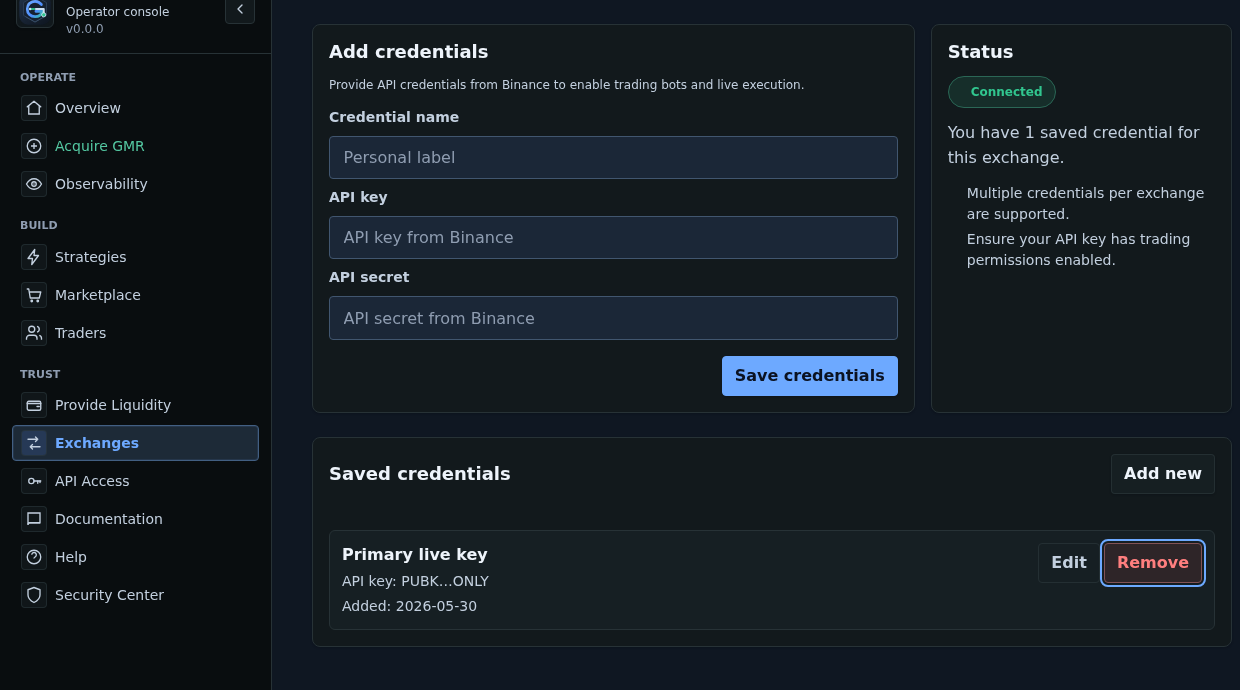
On the current route, the status badge can render Connected or Disconnected. The summary can tell you either You have 1 saved credential for this exchange. or Add at least one credential to enable live trading and bots. That wording is helpful because it tells you what Gimmer currently has on record for this exchange page.
It does not tell you that the exchange is reachable right now. It does not prove that permission scope is correct. It does not prove live-trading readiness. Treat Status, saved-credential count, masked API-key identity, and Added dates as audit signals for inventory review only.
Use Saved Credentials To Review What Is Actually On Record
After Status, move into Saved credentials. This is where the page becomes practical.
The current route can show a saved credential name, a masked API-key identity such as API key: PUBK…ONLY, an Added date, and the visible actions Edit and Remove. That grouping is useful because it gives you a direct way to separate a current entry from an old assumption. Instead of guessing which key was saved or when it was last staged into Gimmer, you can read the current list and decide whether the entry still belongs in your working inventory.
The nearby Add new action matters for the same reason. It keeps the next decision visible. If the saved entry is still the one you want, keep it. If it is outdated or mislabeled, update or remove it. If you need a different credential for a new operating context, add a new one deliberately instead of overloading an older record by habit.
Let Added Dates Help You Orient, Not Assume
The Added date is useful, but only if you stay precise about what it means.
It can help you orient yourself inside the current inventory. A date can distinguish an older record from a more recent one, which is valuable when you are deciding whether a saved entry still looks like the right fit for the next step. But the date is not proof that the credential is current, tested recently, or safe to reuse automatically.
That difference matters. A page that supports review is not automatically a page that certifies readiness.
Use The Reminder Copy Literally
The route also keeps two useful reminders visible: Multiple credentials per exchange are supported. and Ensure your API key has trading permissions enabled.
Read both literally. The first tells you the product can hold more than one saved entry for the same exchange. The second is a visible reminder for centralized-exchange credentials. Neither line should be stretched into a stronger public claim than the route itself makes. They help you interpret what kind of inventory you may be seeing, but they do not certify that the current saved entry is the correct one for the next workflow.
What To Do If The Route Shows Disconnected Or Empty
The connected state is only half of the story. The empty and disconnected states matter too.
If the route shows Disconnected, the summary Add at least one credential to enable live trading and bots., and the empty-state message No credentials saved yet., read that as a missing-inventory result, not as a mysterious failure. The useful next step there is straightforward: decide whether this exchange should have a saved credential now or whether you should stop before another workflow assumes it exists.
That is still part of the review habit this article is teaching. Sometimes the correct audit result is not “keep the entry.” Sometimes it is “there is nothing here yet, so do not continue as if a reusable credential already exists.”
A Practical Audit Routine Before You Continue
A short routine keeps the route useful without turning it into a promise surface:
- Open Exchanges and choose one centralized exchange detail page you may reuse soon.
- Read Status first and treat the result as inventory context, not as exchange-health proof.
- Confirm the summary text so you know whether Gimmer currently has one, many, or zero saved credentials on record.
- Open Saved credentials and inspect the visible name, masked API-key identity, and Added date for each entry.
- Use Edit, Remove, or Add new only after the current inventory is clear.
- If the page is empty or disconnected, stop there instead of carrying an old assumption into the next workflow.
What This Article Is Not Claiming
This is not a first-time setup guide. It is not a venue-comparison article. It is not a wallet/private-key tutorial. It is not a claim that the exchange-detail route proves exchange reachability, permission scope, or live-trading readiness. It is also not a promise that a saved credential is safe simply because it appears in the list.
The public value here is narrower than that. Gimmer gives the operator a current inventory-review surface. Use that surface to read what is on record before you continue. Do not inflate it into a guarantee.
Final Thoughts
Good operating discipline usually starts with one quiet check: what does the product actually show me right now before I reuse an old setup?
In Gimmer, the current exchange-detail route is a useful answer to that question for centralized exchanges. Read Status. Inspect Saved credentials. Use the masked API-key identity and Added date to orient the review. Then decide whether to keep, update, remove, or replace the saved credential before you move on.
Open Gimmer, go to Exchanges, open one connected centralized exchange, review Status, confirm the saved-credential count, inspect the masked API key and Added date in Saved credentials, and then decide whether to keep, edit, remove, or add a credential before you continue to the next workflow.
— The Gimmer Team