
Before you try a strategy start in Gimmer, read the start-preflight first. The current panel already tells you whether the visible hold check sees a shortfall, what is already in use, and what is available for a new start, so the better move is reading that boundary before retrying blindly.
Why Blind Retries Usually Add Confusion
A blocked strategy start can create the wrong habit: click again, hope the state changed, and only then look for an explanation.
Gimmer’s current start-preflight gives you that explanation before the next start attempt. Instead of guessing, you can read the current hold check, see whether the visible shortfall is zero, and decide what to do from the state the product is already showing you.
That is the useful role of this panel. It is not there to predict outcomes. It is there to help you read the current start boundary before you try again.
Start In The Right Place
The path matters. This article is about the saved-strategy start surface inside the Show bots overlay, not about strategy selection, onboarding, or token marketing.
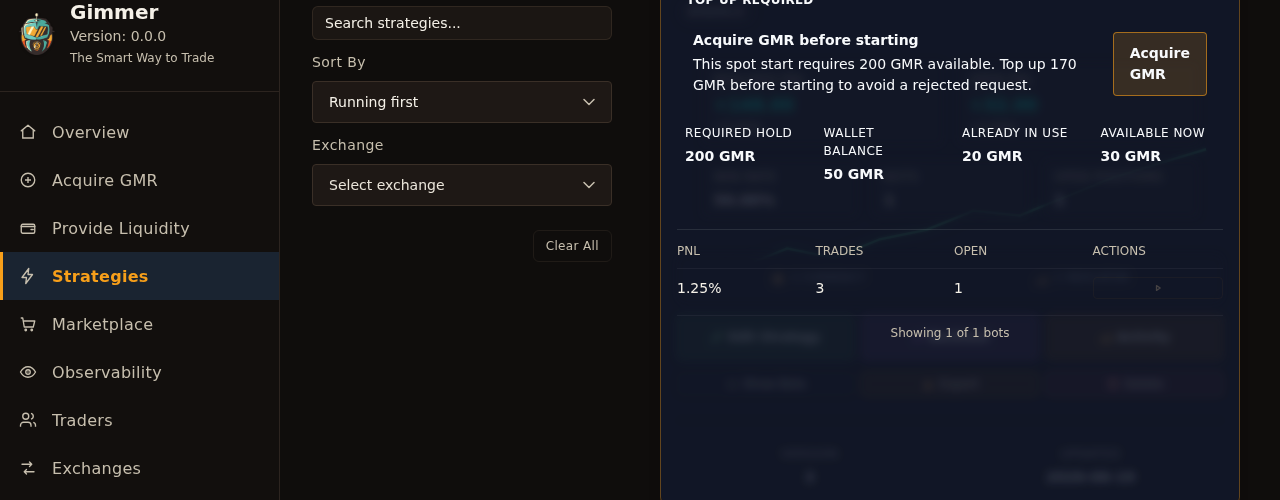
When you open an owned strategy card and inspect the start surface, the preflight summarizes the current hold check in one place. That is the moment to stop and read it. If you skip past that panel, you lose the clearest explanation the product currently gives you before a start attempt.
Read The Four Numbers Together
The preflight is easiest to understand when you read the four visible labels as one snapshot rather than four separate facts:
- Required hold shows the current GMR requirement for that strategy type.
- Wallet balance shows the GMR balance the panel is currently reading.
- Already in use shows how much of that balance is already committed elsewhere.
- Available now shows what is currently left for a new start attempt.
The point is not to memorize values from a blog post. The point is to understand how the current panel is framing the decision in front of you. If the available amount does not cover the current hold, the next step is different from a panel that shows no visible shortfall.
What The Blocked State Is Telling You
When the panel shows Top up required and the title Acquire GMR before starting, read that as a current blocked state, not as a generic prompt to buy a token.
In that moment, the visible message is narrower: the current preflight sees a shortfall for this start attempt. The product is giving you a literal next step through the Acquire GMR handoff, and it is better to respond to that current state than to keep retrying without changing anything.
That does not mean every blocked start is explained by the same cause in every context. It means this visible preflight is currently showing a hold shortfall, and that is the boundary you should address first.
What A Ready State Means And What It Does Not Mean
You may also see a ready state such as GMR ready or GMR hold ready. Treat that as a current check result, not as a promise that every start will succeed.
A ready preflight means the visible check did not find a current GMR shortfall for that attempt. It does not mean every other validation has disappeared, and it should not be read as a guarantee about runtime behavior, trading outcomes, or universal start success.
The right habit is simple: if the panel looks ready, continue with the awareness that you are looking at the current hold check, not a blanket approval for everything that happens next.
What To Do If The Check Is Unavailable
Sometimes the panel can show GMR hold check unavailable. If that fallback appears, read it literally.
The useful next step there is either to use Retry and refresh the visible check, or continue only with the understanding that the actual start attempt still has to be validated when you try it. Fallback is not reassurance. It is a degraded state that tells you the panel could not confirm the current hold cleanly.
A Practical Preflight Routine
A small routine keeps this surface useful:
- Open the owned strategy card and inspect the Show bots overlay before retrying a blocked start.
- Read Required hold, Wallet balance, Already in use, and Available now as one current snapshot.
- If the panel shows Top up required, respond to the visible shortfall before you try the start again.
- If the panel shows a ready state, treat it as the current hold result rather than a universal success guarantee.
- If the panel shows GMR hold check unavailable, use Retry or continue only with the understanding that the check did not confirm the current state cleanly.
That routine is intentionally operational. It helps you read the product as it exists now instead of turning a blocked start into a guessing game.
Final Thoughts
Good operator discipline usually starts with one calm question: what is the product telling me right now before I try this again?
In Gimmer, the current start-preflight is part of that answer. Read the panel, understand the visible shortfall or ready state, and let the current labels guide the next step instead of defaulting to another blind retry.
Open the strategy card, read the start-preflight summary, and top up GMR or retry the hold check before you try the start again.
— The Gimmer Team